Meta Description: How to Set Up a Secure Home Wi-Fi Network. Learn about Wi-Fi 7, WPA3 encryption, IoT segmentation, and Zero Trust to protect against modern AI threats.
How to Set Up a Secure Home Wi-Fi Network
In 2026, your home Wi-Fi is more than just a gateway to the internet; it is the central nervous system of your digital life. With the rise of “Agentic AI” (AI that can autonomously find and exploit network gaps) and the integration of professional remote work environments, the old advice to “just change your password” is no longer enough.
Today’s threat landscape includes AI-driven brute force attacks that can guess credentials with terrifying speed and lateral movement exploits where a compromised smart lightbulb can lead a hacker directly to your work laptop. Setting up a secure home Wi-Fi network now requires a Zero Trust mindset—assuming that any device could be a potential entry point and building perimeters accordingly.
1. The Foundation: Hardware and Physical Security
Before touching a single software setting, you must ensure your hardware is capable of 2026 security standards.
The Wi-Fi 7 Advantage
If you are still using a Wi-Fi 5 or early Wi-Fi 6 router, you are vulnerable. Wi-Fi 7 (802.11be) isn’t just about speed; it introduced Multi-Link Operation (MLO) and enhanced encryption handling that makes it significantly harder for attackers to “sniff” or jam your signal.
Router Placement
Place your router in the center of your home, away from windows. This isn’t just for signal strength—it’s to minimize “signal bleed” into the street, reducing the risk of “wardriving” or neighbor-based eavesdropping.
Disable Physical Backdoors
Most modern routers come with WPS (Wi-Fi Protected Setup) enabled by default. This feature allows devices to connect via a simple PIN or button press. It is a massive security hole. Disable WPS immediately in your settings to prevent easy brute-force entry.
2. Hardening the Gateway: Initial Configuration
Access your router’s administrative panel (usually by typing 192.168.1.1 into a browser) to perform these essential “hardening” steps.
Step 1: Change Administrative Credentials
This is the password for the router settings, not the Wi-Fi. Never use the default “admin/password” combo. Use a unique 16-character passphrase. If your router supports Two-Factor Authentication (2FA) for its admin panel, enable it.
Step 2: Rename the SSID
Change your network name (SSID) to something generic that does not identify you, your address, or your router model. Avoid “The Smith Family” or “Netgear_AXE500.” Using the manufacturer’s name in your SSID tells hackers exactly which vulnerabilities to look for.
Step 3: Disable Remote Management
Unless you are a network pro who needs to fix your Wi-Fi while on vacation, disable Remote Management (or Web Access from WAN). This ensures that your router settings can only be accessed by a device physically connected to your home network.
3. Encryption: Moving to WPA3-SAE
Encryption is the protocol that “scrambles” your data. In 2026, the global standard is WPA3-SAE (Simultaneous Authentication of Equals).
| Feature | WPA2 (Legacy) | WPA3 (Modern Standard) |
| Dictionary Attacks | Vulnerable to offline cracking | Immune due to SAE handshake |
| Public Wi-Fi | No individual encryption | Provides “Opportunistic Wireless Encryption” |
| Encryption Strength | 128-bit (Standard) | 192-bit (Enterprise-grade) |
| Handshake | 4-Way Handshake (Known flaws) | SAE (Dragonfly) Handshake |
Expert Insight: If you have very old devices that don’t support WPA3, use “WPA3/WPA2 Mixed Mode,” but prioritize replacing those legacy devices. Older protocols like WEP or WPA are now considered completely broken and should never be used.
4. The “Zero Trust” Strategy: Network Segmentation
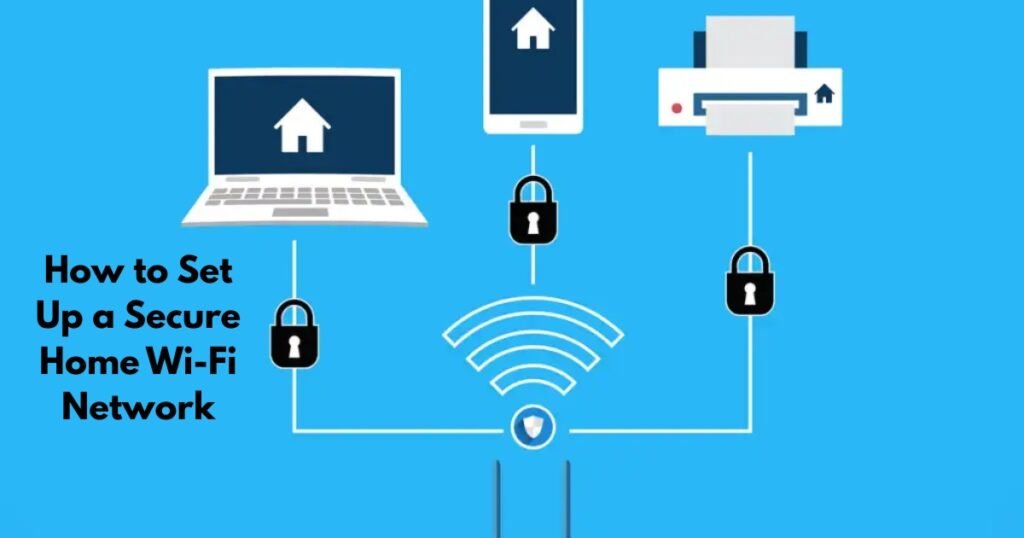
The biggest security mistake in 2026 is putting your high-security work laptop on the same network as a $15 smart plug. This is where Network Segmentation comes in.
The Guest Network for IoT
Most modern routers allow you to create a “Guest Network.” In a secure home, you should have at least three segments:
-
Main Network: Reserved for your primary computers, smartphones, and banking.
-
Work Network: (Optional but recommended) A dedicated segment for your work-from-home gear.
-
IoT Network: For smart TVs, cameras, fridges, and bulbs.
Why it works: By isolating IoT devices, you prevent Lateral Movement. If a hacker takes over your smart doorbell, the “Zero Trust” architecture ensures they cannot “see” or jump over to your laptop to steal your passwords.
5. Advanced Defense: DNS Filtering and AI Protections
Hackers now use Agentic AI to scan for open ports and vulnerable firmware in real-time. You need active defenses to counter this.
DNS Filtering (The “Silent Guard”)
Instead of using your ISP’s default DNS, switch to a secure provider like Cloudflare (1.1.1.1) or NextDNS. These services act as a filter, blocking your devices from even reaching known malware sites or “Command and Control” (C2) servers used by hackers.
Router-Level VPNs
While you can use a VPN on your phone, a Router-level VPN (like those found in ExpressVPN Aircove or ASUS routers) encrypts the traffic for every device in your house, including those that don’t normally support VPNs, like your Smart TV or gaming console.
Firmware Hardening
Enable Automatic Updates. Router manufacturers release patches for “Zero-Day” vulnerabilities (flaws hackers find before the public knows about them). In the EU, the Cyber Resilience Act (CRA) now mandates that manufacturers provide these updates for the product’s lifetime—make sure you are taking advantage of them.
6. Comparison of 2026’s Most Secure Routers
| Router Model | Best For | Key Security Feature | Approx. Price |
| ASUS RT-BE88U | Performance | AiProtection Pro (Trend Micro) | $450 – $550 |
| TP-Link Archer AX11000 | Value/Gamers | HomeShield Security Suite | $230 – $300 |
| ExpressVPN Aircove | Privacy | Built-in VPN & Kill Switch | $190 – $220 |
| Ubiquiti UniFi Cloud Gateway | Prosumers | IDS/IPS (Intrusion Prevention) | $130+ (Modular) |
7. Common Security Mistakes and Warnings
-
Warning: The Hidden Risk of UPnP. Universal Plug and Play (UPnP) allows devices to “poke holes” in your firewall to talk to the internet. While convenient for gaming, it is frequently exploited by malware. Turn it off and manually forward ports only when necessary.
-
Avoid “Default” Everything. From your IP range (change from
192.168.1.1to something like10.0.0.1) to your SSID, defaults are a hacker’s roadmap. -
The “Near Me” Factor. If you live in a high-density apartment complex in cities like New York or London, your signal is visible to hundreds of people. Use MAC Address Filtering to ensure only your specific devices (whitelisted by their unique hardware ID) can even attempt to connect.
🔹 People Also Ask (FAQs)
Q: Is WPA3 mandatory in 2026?
A: While not “legally” mandatory for consumers, it is the industry standard. Most new devices will default to WPA3. Using anything less (like WPA2) leaves you open to more advanced brute-force tools.
Q: How do I isolate IoT devices on mesh Wi-Fi?
A: Most mesh systems (like eero or Orbi) have an “IoT Network” or “Guest Network” toggle in their app. Simply turn this on and move all your smart devices to that specific SSID.
Q: Can AI hack my Wi-Fi password?
A: AI doesn’t “hack” the password in the traditional sense, but it can run “Smart Brute Force” attacks, using patterns from billions of leaked passwords to guess yours in seconds. This is why using a long (20+ character) passphrase is critical.
Q: What is the “Zero Trust” model for home Wi-Fi?
A: Zero Trust means you never assume a device on your network is safe just because it’s “inside.” You use segmentation and firewalls to ensure that even if one device is hacked, the rest of your network remains secure.
Q: Should I hide my SSID?
A: In 2026, hiding your SSID is largely ineffective. Modern “sniffer” tools can find hidden networks easily. Focus on strong WPA3 encryption instead.
Q: Does a router-level VPN slow down my speed?
A: Yes, slightly. However, Wi-Fi 7 routers have powerful processors that handle the encryption much faster than older models, making the speed drop almost unnoticeable for most users.
Q: How often should I check for router updates?
A: Set it to “Auto-Update” so it happens overnight. If your router doesn’t support this, check manually once a month or sign up for the manufacturer’s security newsletter.
Conclusion
Securing your home Wi-Fi in 2026 is a balance of high-end encryption (WPA3), modern hardware (Wi-Fi 7), and a proactive security posture (Zero Trust Segmentation). By isolating your “smart” home from your “work” home and hardening your gateway, you create a resilient environment that can withstand even AI-driven threats.
Next Steps:
-
Check your router settings to see if WPA3 is enabled.
-
Disable WPS and UPnP immediately.
-
Set up a Guest Network for your IoT devices today.